Entities Advanced Topics
Entity IDs
Section titled “Entity IDs”Natural ID
Section titled “Natural ID”Each Entity should be designed with 1 Unique ID Field - This is defined by setting the switch Include in ID to True. If multiple fields have this setting = True then a Composite ID is created - this is not recommended but may be useful occasionally.
System ID
Section titled “System ID”Anybuild also automatically adds a System ID friendly name thing_id db name Field to every Entity - this is critical for lookups and relations.
Anybuild also adds a Version ID field to every entity.
Both of these are 128 bit UUID datatypes.
Reference Fields
Section titled “Reference Fields”Fields created as reference types and create a relation to another entity will refer to that Entity’s thing_id
Anybuild will also create another field Entity Display Name this will refer to the referenced Entity’s Natural ID
It is best to join in view designer using system IDs but use display fields aswell for human readable view output.
Entity Inheritance
Section titled “Entity Inheritance”Anybuild Applications are designed using the DRY (Don’t Repeat Yourself) principal this is good practice in Relational Databases (Normalization) and with Software Design in general. Entering and maintaining data in one place naturally results in better Data Integrity and Accuracy preventing errors such as Duplicates and Inconsistencies.
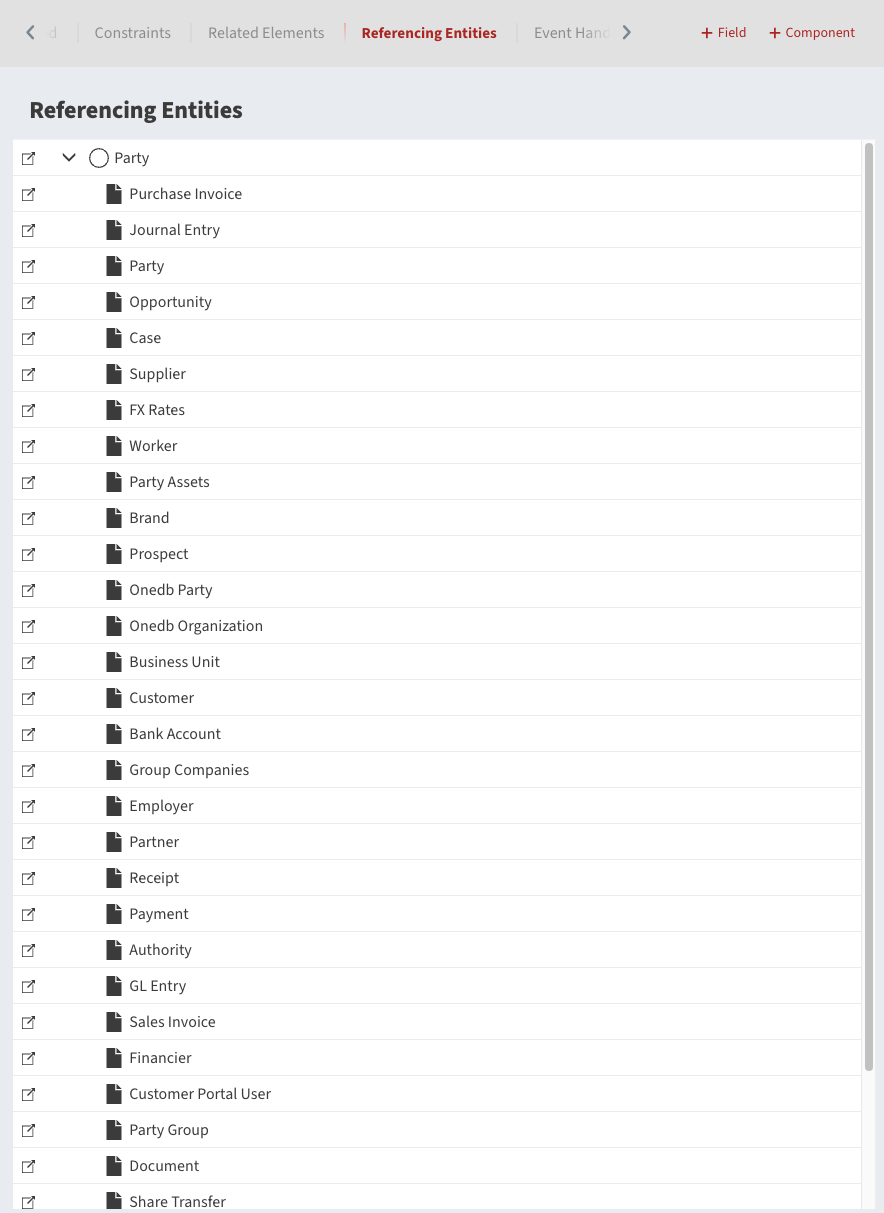
A good example is the Party Entity - This is a generic entity that is shared by many sub entities such as Customer, Supplier, Worker, Prospect etc (see screenshot below). It manages common data such as ID, Name, Addresses, eMails etc so that Sub Entities such as Customer only manage additional data specific to them such as Customer Group - you would not enter an Address in Customer Entity because it is already in the Party entity - so can easily be referenced as an inheritance relation.
Entity Composition
Section titled “Entity Composition”Composition is a powerful Anybuild feature that easily solves problems that may be caused by inheritance.
Entity Inheritance can sometimes cause a problem when a descendent entity needs to reference more than 1 ancestor type. e.g. a CRM Opportunity may be with either a Customer or a Prospect - both of which are sub Entities of Party.
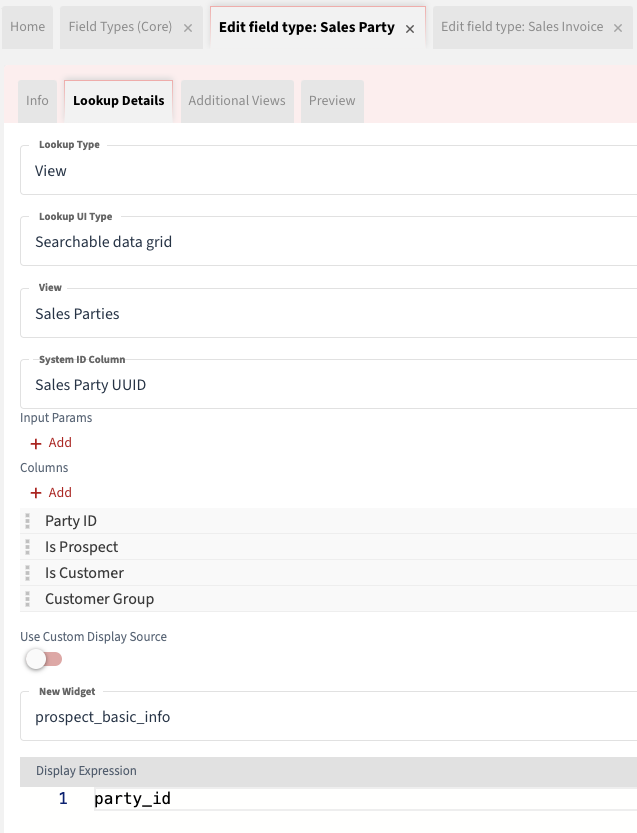
The way around this is to create a Composite Field Type which combines these Entities, first a Union View is created e.g. Sales Parties which adds Customers and Prospects together with a union, both Data Sources must have the same shape i.e. the Same number of columns with the same types and ideally names, because they are kind of stacked upon eachother horizontally - unlike a join which combines tables vertically.
Sales Party Lookup Field Type then references this view Sales Parties.
The view must have a UUID unique ID filed that can be reverenced as System ID column. see screenshot below
Sales Party will then be available in as Field Type for a Reference Field Kind when adding fields to Entities that require this such as in CRM.
Inheritance IDs
Section titled “Inheritance IDs”IDs can be confusing with Inheritance
e.g. Customer has unique ID set for Party Reference field
In this case it is not a natural ID but a Party UUID, Customer will also have its own system ID which is different to the Party system ID because each Entity must have its own system IDs
Applicable / Valid Periods
Section titled “Applicable / Valid Periods”Anybuild can take advantage of Postgres Range Types for Datetime Periods
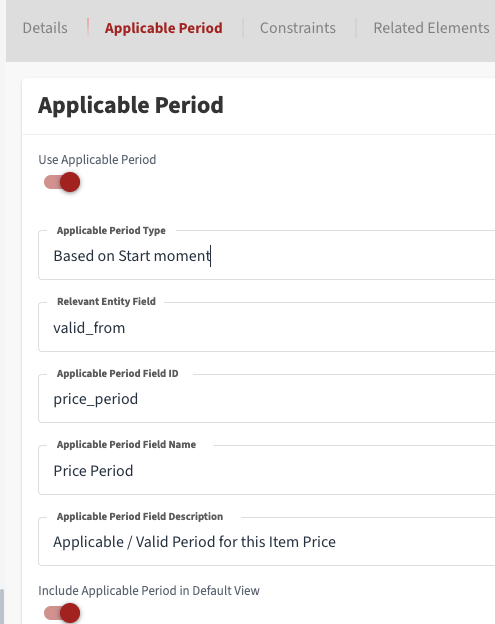
To configure this go to the top right menu in Entity Designer to the tab called Applicable Period.
Applicable Period Type - Based on start moment
Then select a datetime filed for Period to be based on.
Anybuild will automatically create a valid period from this date to infinity.
Then if another instance with the same unique key is entered (key should include start date) Anybuild will create a new instance starting on the new date to infinity and change the previous valid period to end on the new date.
This is very useful for Date range Entities such as Pricelists, views and queries can use logic such as price contained by valid period to find the correct price.
Composite and Abstract References
Section titled “Composite and Abstract References”References to Adhoc Abstract Entities can be manually created from Views e.g. Sales Party is a composite relation because it is a union combination of 2 entities Customer and Prospect - see Entity Composition below
Component References
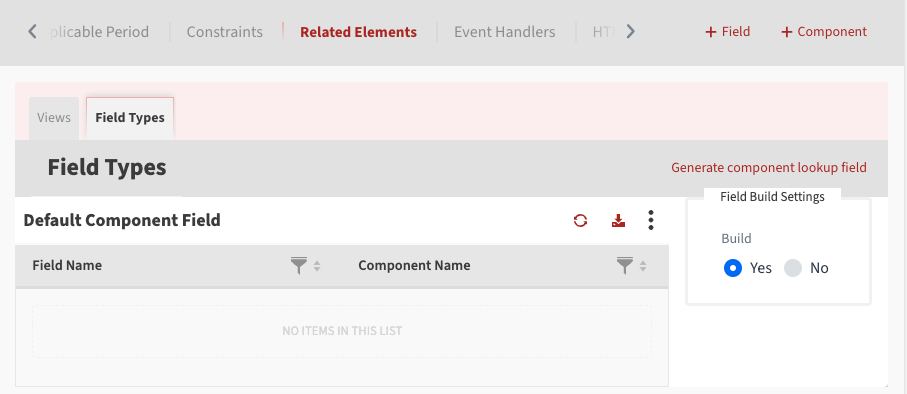
Section titled “Component References”References to Components can also be easily created by selecting the Component you want to reference then Related Elements then Field Types tab then click on Generate component lookup field
Example screenshot for Project Task below
Add Mapping to Component Parent
Section titled “Add Mapping to Component Parent”When referencing a component you must create a mapping to the parent system id e.g.. see screenshot below.

Applicable / Valid Periods
Section titled “Applicable / Valid Periods”Managing temporal data and validity periods.
Composite and Abstract References
Section titled “Composite and Abstract References”Advanced reference patterns and abstractions.
Component References
Section titled “Component References”Working with component-based references.