Linked Transactions
Linked Transaction Purpose
Section titled “Linked Transaction Purpose”Linked Transactions are a very powerful Anybuild feature that enable many business processes to be easily automated.
Workflows (see below) also automated business processes, workflows are for more complex scenarios such as multiple step processes with branching logic.
Many Business Processes have a linear flow where each step has similar data with a change in status e.g.
Purchase Order > GRN > Purchase Invoice > GL Entry > Payment
These kind of workflows are easy to define with Linked Transactions instead of using the more complex Workflow Designer
Define Linked Transaction
Section titled “Define Linked Transaction”Home >> Data Definition Layer >> Linked Transactions >> New Linked Transaction
e.g. Sales Orders can automatically be converted to a Sales Invoice either when some event happens or by the User Clicking a button.
They typically require just 1 or 2 steps plus some mapping between the source Entity and a Target Entity.
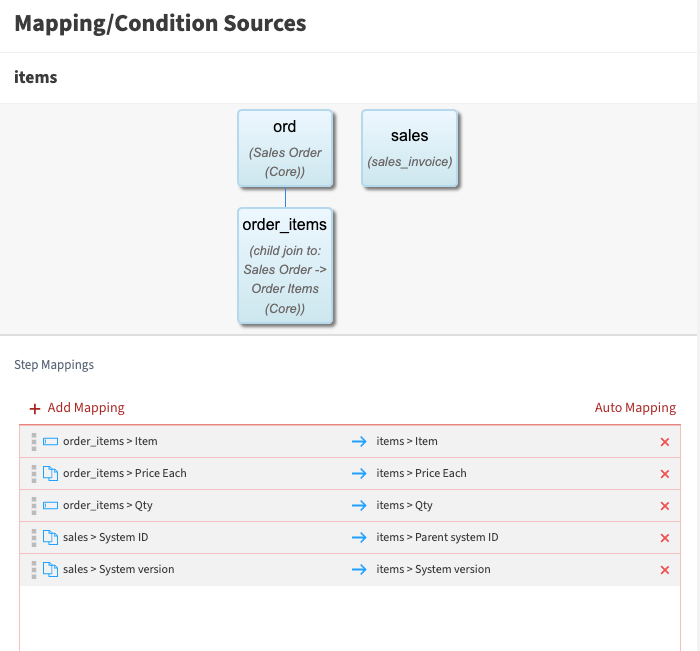
e.g. Screenshot below shows Step 2 mappings from Sales Order Items to Sales Invoice Items. Step 1 is similar and maps Sales Order Header fields such as Customer to Sales Invoice Header.
Data Manipulation
Section titled “Data Manipulation”Linked Transactions can also manipulate data be referencing a view or function
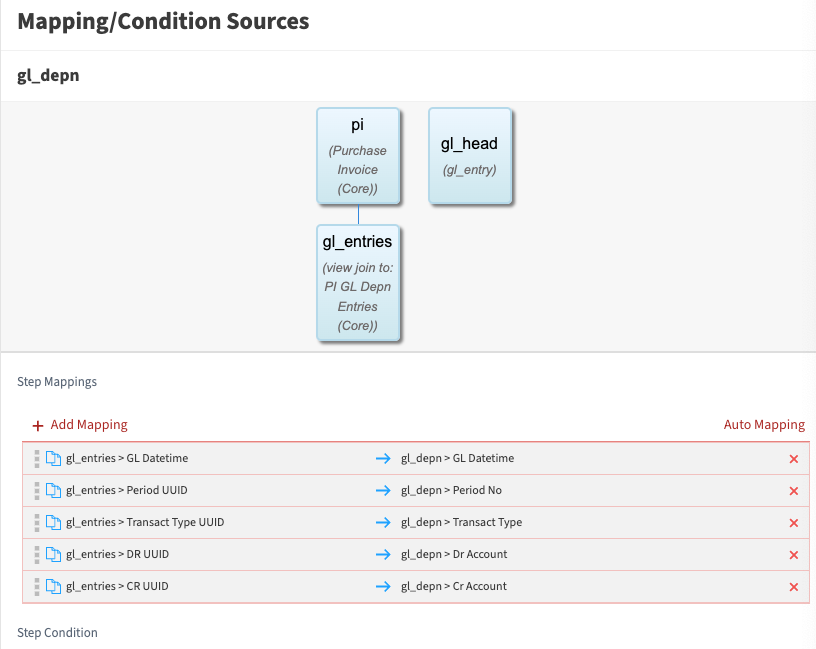
e.g. see screenshot below for Purchase Invoice to GL Entry which uses a View to spread the Asset Purchase Value over multiple GL Periods corresponding to the Asset’s life and depreciation method.
Add Button to initiate Linked Transaction
Section titled “Add Button to initiate Linked Transaction”Expand Far Left System Admin Menu
Administration >> Settings >> Custom Actions >> New
e.g. Button PO > PI for Purchase Order > Purchase Invoice looks like

Definition below
Action Name is short because it is used within Button
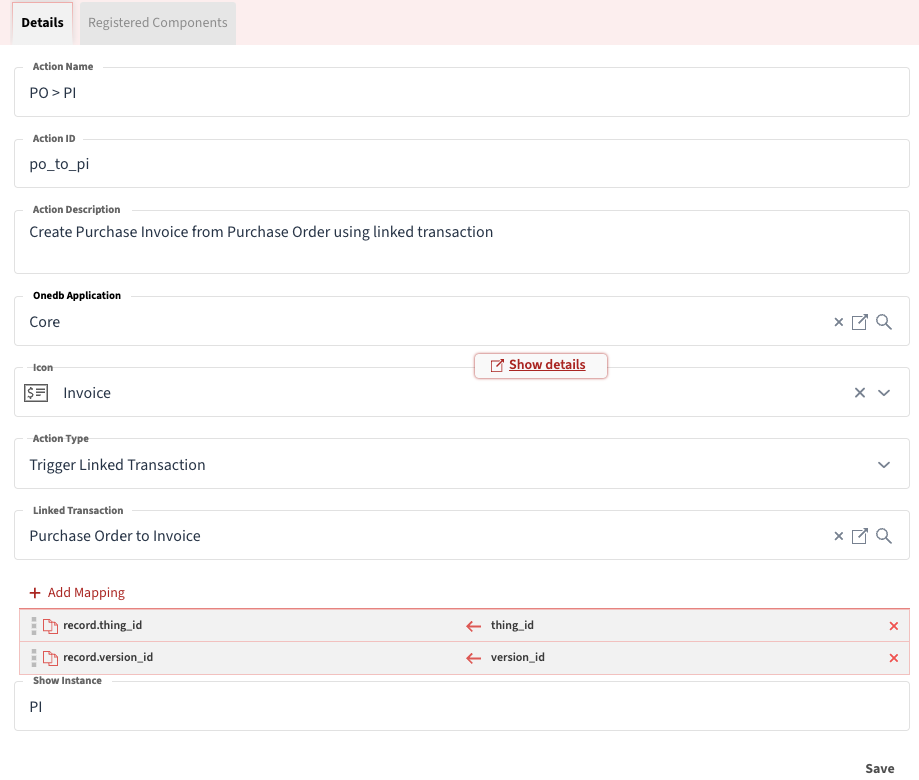
On second Tab Registered Components select Component ID purchase_order to define which Data Input Entity screen to place the button on.