Quote Expiry Reminders
This simple workflow sends an email to Sale Parties that have received a Sales Quote that is close to Expiry
Create View - Quotes near Expiry
Section titled “Create View - Quotes near Expiry”First step is to create a simple view with a single source - Sales Quote (Entity) This view has 2 Parameters 1 Date From (Date TZ) 2 Days Range (Integer).
It filters Sales Quotes with an Expiry Date within the range - Date From > Date To (= days from + days range). The view also adds an email address for the Party Contact using a simple scalar function - Party eMail 1.
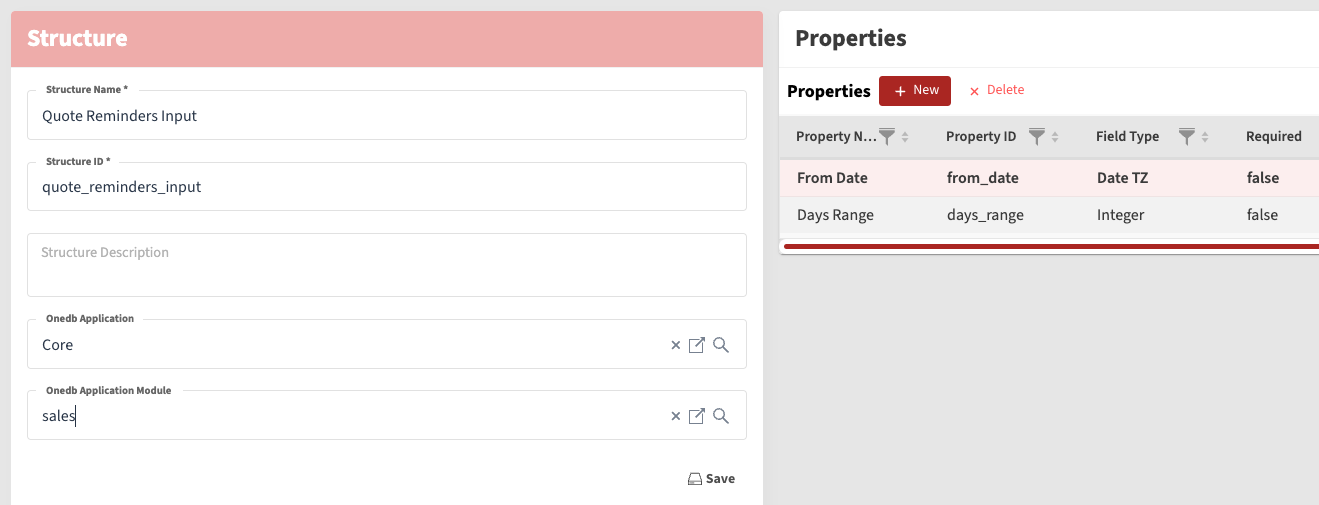
Create Structure - Quote Reminders Input
Section titled “Create Structure - Quote Reminders Input”Home >> Data Definition Layer >> Structure >> New
Quote Reminders Input
This will have similar purpose to View Parameters - use same Names and Data Types as for Quotes near Expiry View
Create Workflow - Quote Reminders
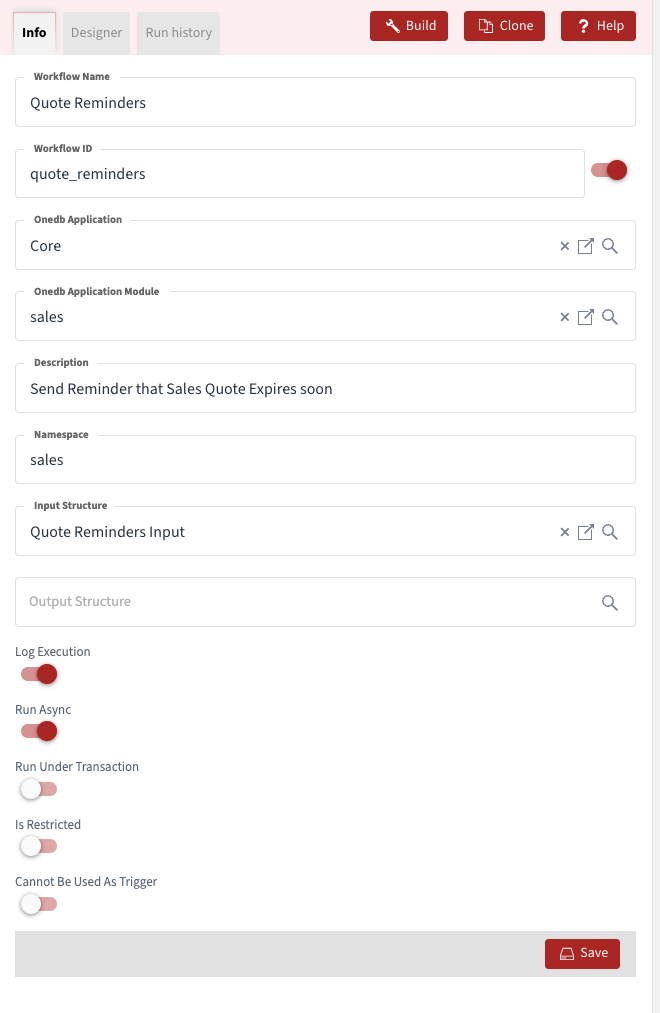
Section titled “Create Workflow - Quote Reminders”Home >> Data Definition Layer >> Functions >> Workflows >> New Workflow
Info Tab - see screenshot below - use input structure - Quote Reminders Input
Designer Tab > Root Level
Section titled “Designer Tab > Root Level”Drag Foreach Component onto canvas in Action tab Name Foreach Quote and set record type view, and select the view Quotes near Expiry
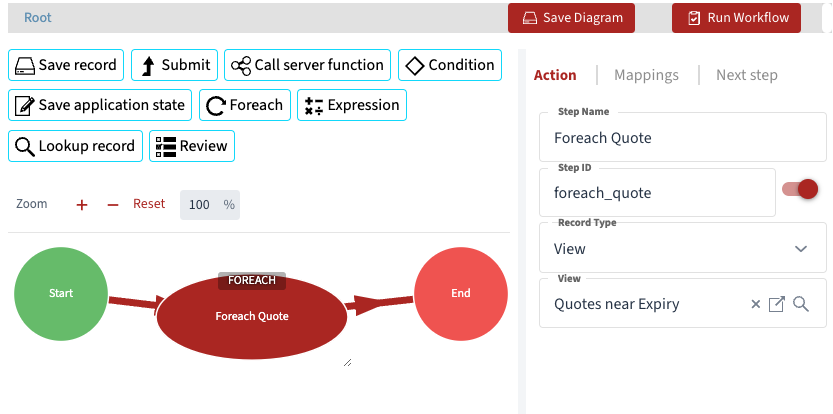
Link to Start to Foreach Quote and then to End
Designer Tab > Foreach Quote -1 level
Section titled “Designer Tab > Foreach Quote -1 level”Double Click on Foreach Quote to define Workflow inside this Node
This Goes down a level - see breadcrumb Root > Foreach Quote to see where you are.
Drag Expression component onto Canvas
Step 1 Action Name - Subject -
Expression Use SQL format to add text and data
e.g. Concatenate fixed text with Expiry Date from the view Foreach Quote v Data
‘Quote Expires on ’|| foreach_quote.data.expiry_date
Step 2 Action Name - Body
Expression > Use SQL format for body of Email Reminder you want to send - use mixture of text and data from the view such as quote value etc You can use HTML tag to format HTML emails if desired.
Step 3 Action Name > Send Mail -
Server Function Anybuild System Mail
Method > Send Mail
Mappings see screenshot 2 below
Screenshot - 3 Steps for eMail
Section titled “Screenshot - 3 Steps for eMail”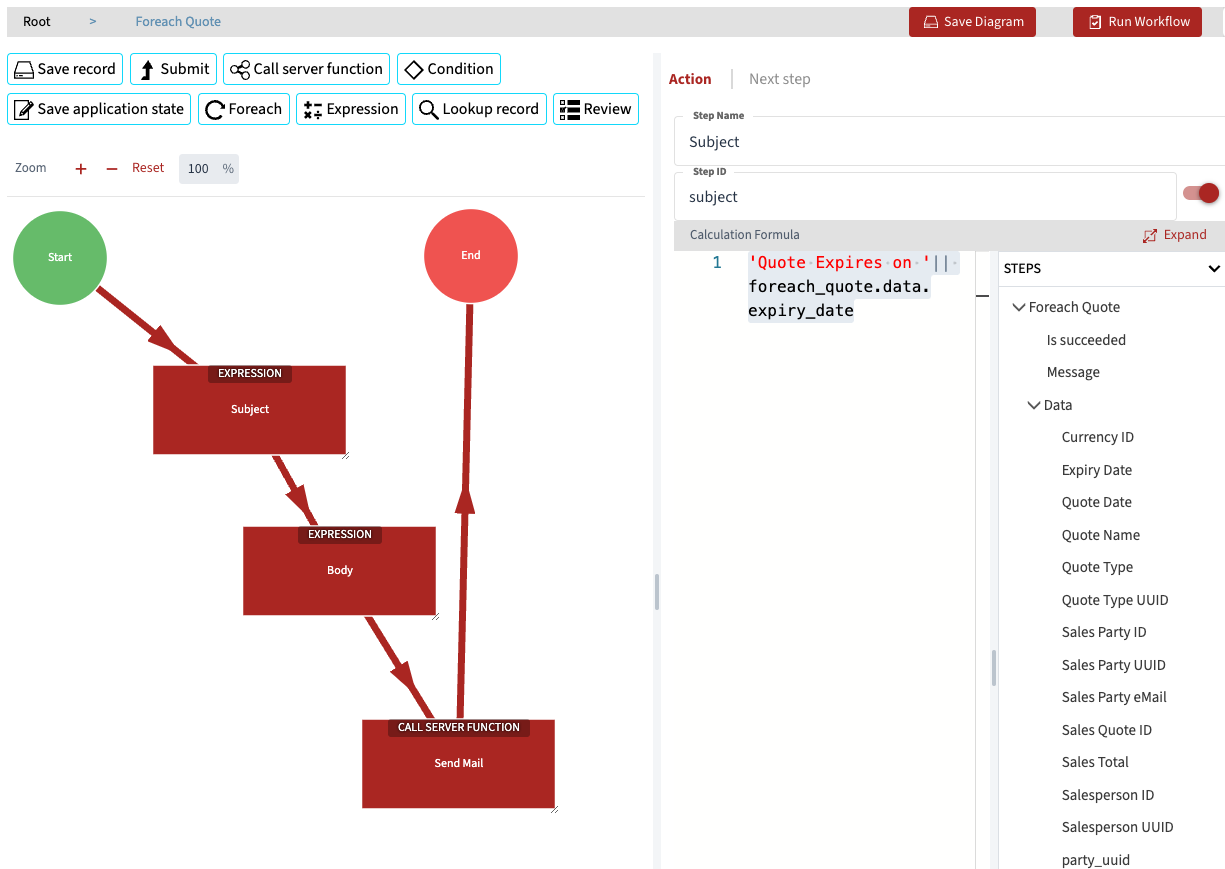
Screenshot - Mappings for Step 3 Send Mail
Section titled “Screenshot - Mappings for Step 3 Send Mail”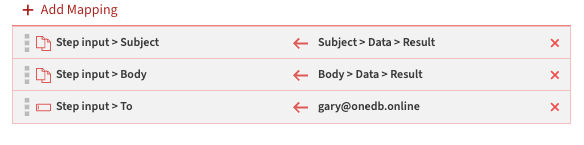
Note above email mapping To self (fixed value) for testing purposes for a real workflow you would map to a Sales Party email address from the View Data.